
Collection Steps
Within a Collection Procedure; Collection Steps determine what happens and when. The Collection Step settings can be broken into four functional areas:
What causes the transition to the next Collection Step and what is the next Collection Step,
Should any controls be applied to the Customer’s transactions whilst this Collection Step is active,
Should a collection email to sent to the Customer as the Collection Step is made active,
Does the Collection Step require a Collection Rep to take any manual actions.
Creating a Collection Step
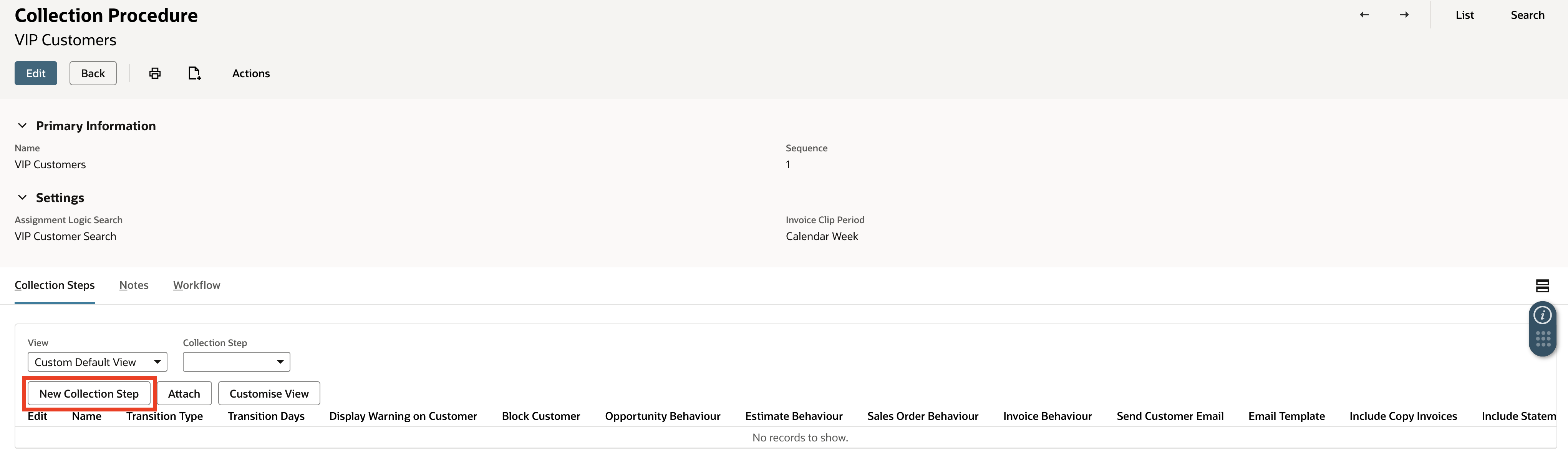
On the Collection Procedure page, click the New Collection Steps button
On the Collection Step page, in the Name field, enter a name for the Collection Step,
In the Transition Type field, select the transition type to apply to the Collection Step,

Note: this is the transition type to the next Collection Step
In the Transition Days field, enter the number of days for the transition to occur,
In the Next Step field, select the Collection Step to be transition to,
Note: this can be populated later if not yet created
Populate fields in the Transition Controls section, see below for details,
Populate fields in the Customer Communications section, see below for details,
Populate fields in the Manual Actions section, see below for details,
Click the Save button.
Transition Types
TaskCollect provides three transition types:
Transition Type | Comments | |
|---|---|---|
| 1 | Scheduled Days | This is an automated transition to the Next Step that occurs after the number of days, as specified in the Transition Days field. |
| 2 | Relative to Due Date | This is an automated transition to the Next Step that occurs when we are the number of days, as specified in the Transition Days field, relative to the due date. Example 1: Invoice Due Date is 31st December 2024, Today is 26th December 2024, Transition Days is -5; transition to Next Step would occur. Example 2: Invoice Due Date is 31st December 2024, Today is 10th January 2025, Transition Days is 10; transition to Next Step would occur. |
| 3 | Manual | This is a manual transition to the Next Step that occurs when a Collection Rep completes the Task on the Task Workbench. |
Transaction Controls
Transaction Controls settings determine NetSuite behaviour for the Customer whilst a Collection Step is current within the Collection Procedure.
Note: Given there could be multiple Collection Procedures running for a particular Customer, the most “sever” of the configured behaviours from those Collection Procedures will be applied.
The Display Warning on Customer field, when checked displays the message entered in the Customer Warning field, whenever the Customer record is viewed,
The Block Customer field when checked sets the Customer record Debtor Status field to “Blocked”,
The Opportunity Behaviour field, governs whether Opportunities may be created as normal, a warning is displayed to the user with the contents of the Opportunity Warning field or, the Opportunity is prevented from being created,
The Estimate Behaviour field, governs whether Estimates may be created as normal, a warning is displayed to the user with the contents of the Estimate Warning field or, the Estimate is prevented from being created,
The Sales Order Behaviour field, governs whether Sales Order may be created as normal, a warning is displayed to the user with the contents of the Sales Order Warning field or, the Sales Order is prevented from being created,
The Invoice Behaviour field, governs whether Invoices may be created as normal, a warning is displayed to the user with the contents of the Invoice Warning field or, the Invoice is prevented from being created.
Customer Communications
Customer Communications settings determine whether an email is sent to the Customer upon the Collection Step being transitioned to, and becoming active.
Place a checkmark in the Send Customer Email field, to cause an email to be sent to the Customer,
In the Email Template field, select the template that will populate the email contains and subject line,
Place a checkmark in the Include Statement field, to add a PDF statement to the email,
Place a checkmark in the Include Copy Invoices field, to add a PDF copy of each Invoice transaction in the Collection Procedure.
Manual Actions
Manual Actions apply when the Transition Type has been chosen as Manual. Manual Actions appear on the Task Workbench on their due date, which is calculated as Transition Days added onto the date the Collection Step was transitioned to.
In the Manual Action Type field, select the action the Collection Rep should perform.