
Customer Onboarding
TaskCollect includes customer onboarding functionality that provides a process for: credit checking the customer, setting credit limits and terms. As well as additionally including, onboarded customer approvals for robust segregations of duty.
Prerequisites
Customer Onboarding is a feature of TaskCollect that must be enabled.
The Customer Approval step is also a feature that must be separately enabled.
Identifying Customers Ready for Onboarding
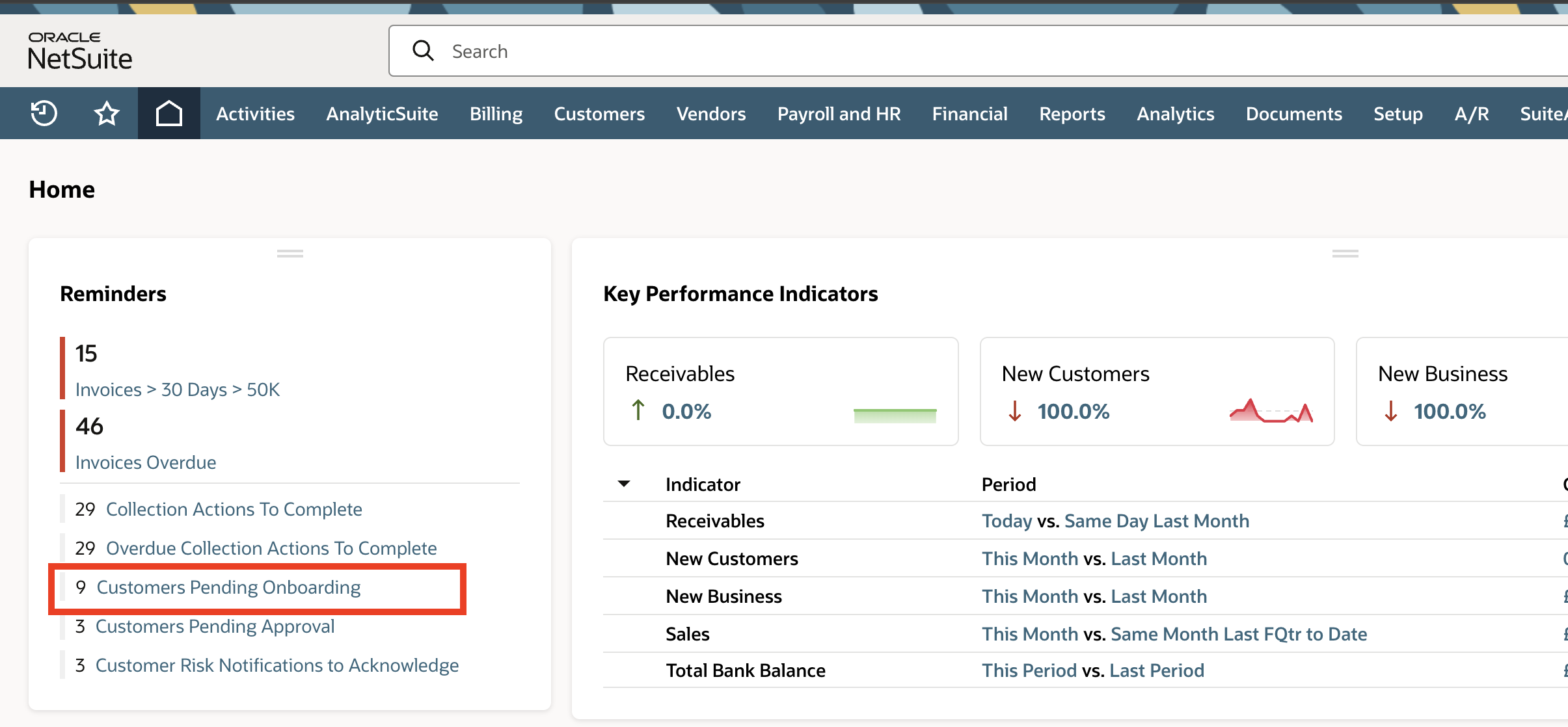
You can identify Customers that are ready to be onboarded by ensuring the Customers Pending Onboarding reminder is added into the Reminders Portlet on your dashboard.
Until a Customer has been fully onboarded a warning message is displayed when viewing the Customer record.

To Onboard a Customer
Go to your dashboard,
Click the Customers Pending Onboarding reminder,
Review the list of Customers,
Click the View link against a Customer,
Review the Customer record has the appropriate fields populated you expect as part of your business processes,
Click the Link Credit Agency button,
On the Link Credit Agency popup, select the credit agency you wish to use in the Credit Agency field,
Review the list of companies provided by the credit agency, place a checkmark against the correct company and click the Next button,
From the “Update the following information to the customer record” section, choose any information you want to save to the customer record, then click the Finish button.
Click the Perform Credit Check button, the page will refresh once the create report has been downloaded,
Click the TaskCollect subtab, and review the sublist of TaskCollect Credit Reports,
Click the View Credit Report button, and review the credit report provided; decide on appropriate credit limit and payment terms for the customer,
Close the credit report, and click the Edit button; to edit the customer record,
In the Terms field, select the payment terms to assign to the customer,
In the Credit Limit field, enter the credit limit to assign to the customer,
Click the Save button.
Approving an Onboarded Customer
Go to your dashboard,
Click the Customers Pending Approval reminder,
Review the list of Customers,
Click the View link against a Customer,
Review the Customer record has the appropriate fields populated you expect as part of your business processes; and, that the terms and credit limit set are appropriate for the customer’s credit risk rating and the information contained in their credit report,
Click the Approve button.
Transaction Controls during Customer Onboarding
Until a Customer has been onboarded users may receive a warning when creating sales transactions, or may be prevented from creating them, depending upon your TaskCollect configuration.
Sales transactions under control:
Opportunities
Estimates
Sales Orders
Invoices
Each sales transaction type is configured to either:
Allow the transaction to be created as normal,
Allow the transaction to be created as normal, however a warning message is displayed to the user,
The transaction is prevented from being created, and the user see an error message displayed.